
The most reliable way to hide a digital journal is to use a zero-knowledge (client-side encrypted) journaling app or an encrypted local vault, combined with tight device and backup hygiene. Zero-knowledge means your entries are scrambled on your device before they ever leave it, so even the app maker only ever sees unreadable data.
Three things to do right now, in this order:
- Lock down the app itself. Set a unique app-specific password that has nothing to do with your device passcode, and turn off notification previews so entry text never flashes on the lock screen.
- Back up before you lose access. Create an encrypted offline backup and store it somewhere the person you’re documenting cannot reach, such as a separate secure location or with a trusted person who understands discretion.
- Know this is a starting point. not a diagnosis. This guidance is educational, not clinical. If you’re in immediate danger, call 988 (Suicide & Crisis Lifeline) or 1-800-799-7233 (National Domestic Violence Hotline).
Key Takeaways
Hiding a digital journal effectively requires zero-knowledge encryption, disabled lock-screen previews, and an encrypted offline backup stored away from any device someone else can access.
| Point | Details |
|---|---|
| Choose zero-knowledge encryption | Confirm in app settings that entries are encrypted on your device before upload, not just in transit. |
| Lock the device and the app separately | A device passcode alone isn’t enough; add a distinct app-specific password too. |
| Control your backups | Exclude the journal from general cloud backups or verify the sync is end-to-end encrypted. |
| Use a separate device if monitoring is suspected | A compromised device undermines every app-level protection you set up. |
| Consider Unmasked Care for reflection and evidence organization | Unmaskedcare pairs privacy-aware storage with an AI Decoder and structured reflection tools tailored to manipulative dynamics. |
Table of Contents
- Quick Privacy Checklist to Apply Now
- Which Method Fits Your Threat Level?
- Step-by-Step Setup: Securing Your Journal, Device, and Backups
- Advanced Protections: Monitoring, Screenshots, and Key Management
- How Unmasked Care Supports Private Documentation and Reflection
- Steganography and Disguised File Formats for Journal Entries
- Creating Hidden or Disguised Folders and Containers
- Using Hidden Spaces and Guest Accounts on Your Device
- Secure Deletion: Making Sure Old Drafts Don’t Come Back
- Reviewing Access Logs and App Permissions Regularly
- Perspective: What Digital Protections Can and Can’t Do
- Try Unmasked Care’s Privacy-Aware Tools
- Sources
Quick Privacy Checklist to Apply Now
You can knock out most of the risk in about ten minutes. Work through this in order:
- Set a strong, alphanumeric device passcode and a short auto-lock window (30 seconds to one minute). Treat Face ID or fingerprint unlock as a convenience layer, not your real security.
- Turn on a separate app lock for your journal so a passcode alone doesn’t open it, and hide notification previews both in the app and at the system level.
- Check your backup settings. Exclude the journal from general cloud backups, or confirm any sync option is end-to-end encrypted before you trust it.
- Use a dedicated email for anything tied to documentation, never one shared with or accessible to a partner.
- Guard access like it’s evidence. Never share your journal password with anyone, including someone you trust for other things.
Pro Tip: Test your setup by locking your phone, handing it to a friend, and asking them to try to find the journal app. If they stumble onto it in under a minute, your app-hiding and naming choices need work.
Which Method Fits Your Threat Level?
Not every situation calls for the same level of protection, and matching the method to the actual risk keeps things usable instead of paralyzing.
Start by naming your threat model honestly. Casual snooping means someone might pick up an unlocked phone out of curiosity. Shared device risk means you and someone else use the same tablet, computer, or family account. Targeted digital monitoring means you suspect stalkerware, shared cloud logins, or someone who actively checks your activity, which is a different and more serious category.
Here’s how the main options stack up against those three levels:
- Zero-knowledge encrypted apps offer strong protection against server breaches and outside snooping because the provider only ever stores ciphertext, never plaintext. The tradeoff is that you become responsible for your password. Lose it, and there’s often no recovery, since the whole point is that the company can’t read your data either.
- Device-only journaling (an app with no cloud sync at all) works fine for casual snooping but falls apart the moment the device itself is lost, seized, or searched.
- Encrypted local files or vaults give you portability and strong protection if you manage the encryption key carefully, but they demand more technical comfort than a polished app.
- Paper journals leave no digital trace at all, which matters against targeted monitoring, but they carry physical risk. A notebook can be found, read, or destroyed in seconds.
If you may need documentation to hold up later, whether for a protective order or a custody matter, lean toward methods that produce clean, timestamped, exportable records rather than something you’d have to reconstruct from memory.
Step-by-Step Setup: Securing Your Journal, Device, and Backups
Start with the app itself. Look for explicit “zero-knowledge” or “client-side encryption” language in the app’s privacy settings, not just marketing copy. Some encrypted diary tools go further, skipping account emails entirely and offering encrypted export with auto-lock built in, which reduces how much identifying information sits anywhere.
- Choose your app or build your vault. Confirm in settings, not just in marketing text, whether encryption happens on your device before upload.
- Create a strong, unique password for the app itself, separate from your device passcode. Turn on any two-step verification the app offers, and treat Face ID or fingerprint access as a shortcut, never your only line of defense.
- Turn off lock-screen previews. On iPhone, this lives under Face ID & Passcode settings and Notifications; on Android, it’s under app notification settings. Do this at both the app level and the system level.
- Control your cloud backups. Either exclude the journal from your phone’s general backup routine, or confirm the sync method is end-to-end encrypted. Bring-your-own-storage setups, where you connect your own Google Drive, Dropbox, or Nextcloud account, keep the decryption keys in your hands instead of a provider’s.
- Make an encrypted offline backup. Save an encrypted export to a password-protected drive that stays physically separate from any device someone else can access.
- If you’re documenting abuse for possible future use, export copies immediately after writing them. Preserve fleeting evidence fast, because messages and call logs get deleted, sometimes by the other person. Consider giving one limited, labeled copy to a single trusted person who understands discretion.
Pro Tip: Label backup files something generic, like “Recipes_2026” or “Tax_Notes,” rather than anything that reveals what’s inside. Avoid naming folders with obvious labels that reveal sensitive contents, as these may attract attention during a device search.
Advanced Protections: Monitoring, Screenshots, and Key Management
No app, however well encrypted, protects you if the device underneath it is already compromised. Watch for a battery draining unusually fast, a phone running hot with no obvious cause, unfamiliar apps or profiles you didn’t install, or someone knowing details they couldn’t have learned any other way. Any of these can signal monitoring software, and when a device is compromised, no journaling app can fully protect what’s typed into it.
- If you suspect monitoring, avoid your everyday device for sensitive documentation and use one the other person has never had access to.
- Some apps alert the account owner when a screenshot is taken. When that’s a risk, photograph the screen with a separate device rather than using the native screenshot function.
- Skip cloud-based password recovery options that would let a provider, or anyone with access to your recovery email, reset into your account. Store recovery phrases offline, on paper or a hardware-encrypted drive, never in a note synced anywhere else.
- Keep your most sensitive entries in a separate, smaller archive rather than one long file, so a single exposure doesn’t reveal everything at once.
Digital tools reduce risk. They don’t eliminate it, and knowing that distinction is part of using them well.
How Unmasked Care Supports Private Documentation and Reflection
Unmaskedcare gives you a structured way to make sense of what you’re experiencing without exposing raw entries to guesswork or to someone else’s interpretation. The platform’s tools were built around the specific language of manipulation and controlling dynamics:
- Structured reflection tools that use precise terminology, including gaslighting and DARVO, so your experience gets named instead of left vague.
- An AI Decoder that helps you parse a manipulative message and prepare a clear response before you reply.
- A privacy-focused evidence file feature for storing and summarizing sensitive material without leaving raw entries scattered across apps.
- Anonymous community forums and a searchable therapist directory for support beyond what any app alone can offer.
Steganography and Disguised File Formats for Journal Entries
Steganography means hiding data inside a file that looks like something else entirely: an image, an audio clip, or a document that appears completely ordinary. A photo of a sunset can carry a hidden text file embedded in its pixel data, invisible unless someone knows to extract it with the right tool and password.
For everyday privacy, this is overkill for most readers, but it’s worth understanding as an option when you need an extra layer beyond app locks and encryption. Some people rename a text file’s extension (turning a .txt into a .jpg, for instance) to make it look uninteresting at a glance. That’s a weak trick on its own since anyone technically curious can reveal the true file type in seconds. Genuine steganography tools embed the data at the file level, so the disguised file still opens and functions as an ordinary image or audio file while quietly carrying the hidden content.
The tradeoff is complexity. Steganography tools require you to remember which files hold hidden data and to keep the extraction password separate from the file itself, which adds another point of failure if you forget the details. It’s most useful as a supplement to real encryption, not a replacement for it. If you’re already using a zero-knowledge app with a strong password, steganography mostly matters for a handful of especially sensitive files you want to bury deeper than the rest of your archive.
Creating Hidden or Disguised Folders and Containers
A disguised container is a folder or file that hides your journal in plain sight by looking like something nobody would bother opening. On a computer, this can mean creating an encrypted container file (a single file that, once mounted with a password, reveals a virtual drive full of your actual documents) and naming it something forgettable, like a generic system backup file.
On a phone, the equivalent is often a “vault” feature built into some private note apps, where a folder sits behind its own password layer separate from the general file system. A few gallery and file-manager apps include a hidden album feature that removes certain photos or files from the default view entirely, showing nothing unless you enter a PIN through a specific menu path.

The strongest version of this combines disguise with real encryption rather than relying on obscurity alone. A folder that’s merely renamed or hidden from a default view can still be found by anyone who knows to check hidden files or recently modified items. A folder that’s also encrypted stays unreadable even if someone stumbles onto it. Whichever approach you use, avoid names that hint at the contents, and don’t nest the hidden container inside an obviously personal folder like “My Documents” or “Photos,” where someone browsing casually is more likely to look.
Using Hidden Spaces and Guest Accounts on Your Device
Modern operating systems build in features that create genuine separation between what you use and what someone else can see, and they’re worth using even if you never touch a third-party app.
Android’s guest mode and secondary user profiles create a separate environment on the same device, complete with its own apps, files, and settings, walled off from the main profile. Setting up a secondary profile just for journaling means anyone using guest mode or the default profile never sees your entries exist at all. iPhone doesn’t offer full multi-user profiles the way Android does, but Screen Time restrictions and Face ID app locks create a comparable, if narrower, layer of separation for specific apps.
On a shared family computer, a separate user account with its own password accomplishes something similar. Each account gets its own desktop, files, and browser history, and one account holder generally can’t casually browse another’s files without administrator access.
None of these features are unbreakable. Someone with administrator rights or physical access over time can often work around account separation. But for the common scenario of a shared device where someone might pick it up and scroll, a dedicated profile or guest space removes your journal from casual view entirely, which covers a large share of real-world risk without any technical complexity.
Secure Deletion: Making Sure Old Drafts Don’t Come Back
Deleting a file normally just removes the pointer to it. The actual data often stays on the drive until something else overwrites that space, which means a deleted journal entry can sometimes be recovered with basic forensic software, sometimes well after you thought it was gone.
For phones with modern encrypted storage, deletion tends to be more final because the operating system typically destroys the encryption key tied to that data rather than just marking space as free. Computers, especially older ones or external drives, are a different story. On those, use a dedicated secure-deletion tool that overwrites the space multiple times rather than trusting the standard delete or empty-trash function.
A few practical habits matter more than any single tool:
- Empty your device’s trash or recently-deleted folder regularly instead of leaving old entries recoverable for weeks.
- If you migrate to a new journaling app, securely wipe the old app’s data rather than simply uninstalling it, since uninstalling frequently leaves cached files behind.
- Before selling, returning, or discarding an old phone or laptop, use a full factory reset with encryption enabled beforehand, which renders any leftover data unreadable even if it’s technically still present.
- Avoid keeping multiple loose drafts scattered across notes apps, email drafts, or messaging apps. Consolidate into your one secured archive and delete the scattered originals.
Reviewing Access Logs and App Permissions Regularly
A privacy setup you configure once and never revisit tends to quietly erode. Apps update, permissions reset, and new logins appear without you noticing unless you build in a habit of checking.
Set a recurring reminder, monthly is reasonable, to open your phone’s privacy or security settings and review which apps have access to your camera, microphone, location, and files. An app you installed for one purpose sometimes requests more access than it needs, and permissions can get re-enabled after a system update without asking again.
Check your journaling app’s own security page if it has one. Many privacy-focused apps show a login history or active-session list, letting you spot a login from an unfamiliar device or location. If you see one you don’t recognize, change your password immediately and log out of all other sessions.

Review your cloud accounts too, particularly any account tied to backups. Look at connected apps and third-party access under your account security settings, and revoke anything you don’t recognize or no longer use. A forgotten integration from years ago is a common, overlooked way that account access lingers longer than anyone intended.
This kind of periodic audit takes a few minutes and catches the slow drift that a one-time setup can’t.
Perspective: What Digital Protections Can and Can’t Do
Digital security works like a chain: device passcode, app lock, notification settings, backup encryption, and password habits all have to hold at the same time, because a single weak link, an unlocked phone left on a counter or a backup synced to a shared account, undoes the rest. Treating any one step as sufficient on its own is where most privacy setups actually fail.
None of this replaces immediate safety planning. If you are in danger right now, call 988 (Suicide & Crisis Lifeline) or 1-800-799-7233 (National Domestic Violence Hotline). This guidance describes behaviors and technical practices, not diagnoses, and it isn’t a substitute for professional or clinical assessment of your situation. A journaling setup can help you think clearly and preserve your own account of events, but it can’t replace a safety plan built around your specific circumstances.
— Unmasked Care Team
Try Unmasked Care’s Privacy-Aware Tools
Unmaskedcare gives you something a generic journaling app can’t: reflection tools built specifically around the language of manipulation, so you’re not just recording what happened but making sense of it using visual tools for therapy sessions. The Free AI Decoder helps you break down a confusing or manipulative message before you respond, and the platform’s guides on gaslighting and DARVO put precise words to patterns that are otherwise hard to describe even to yourself.
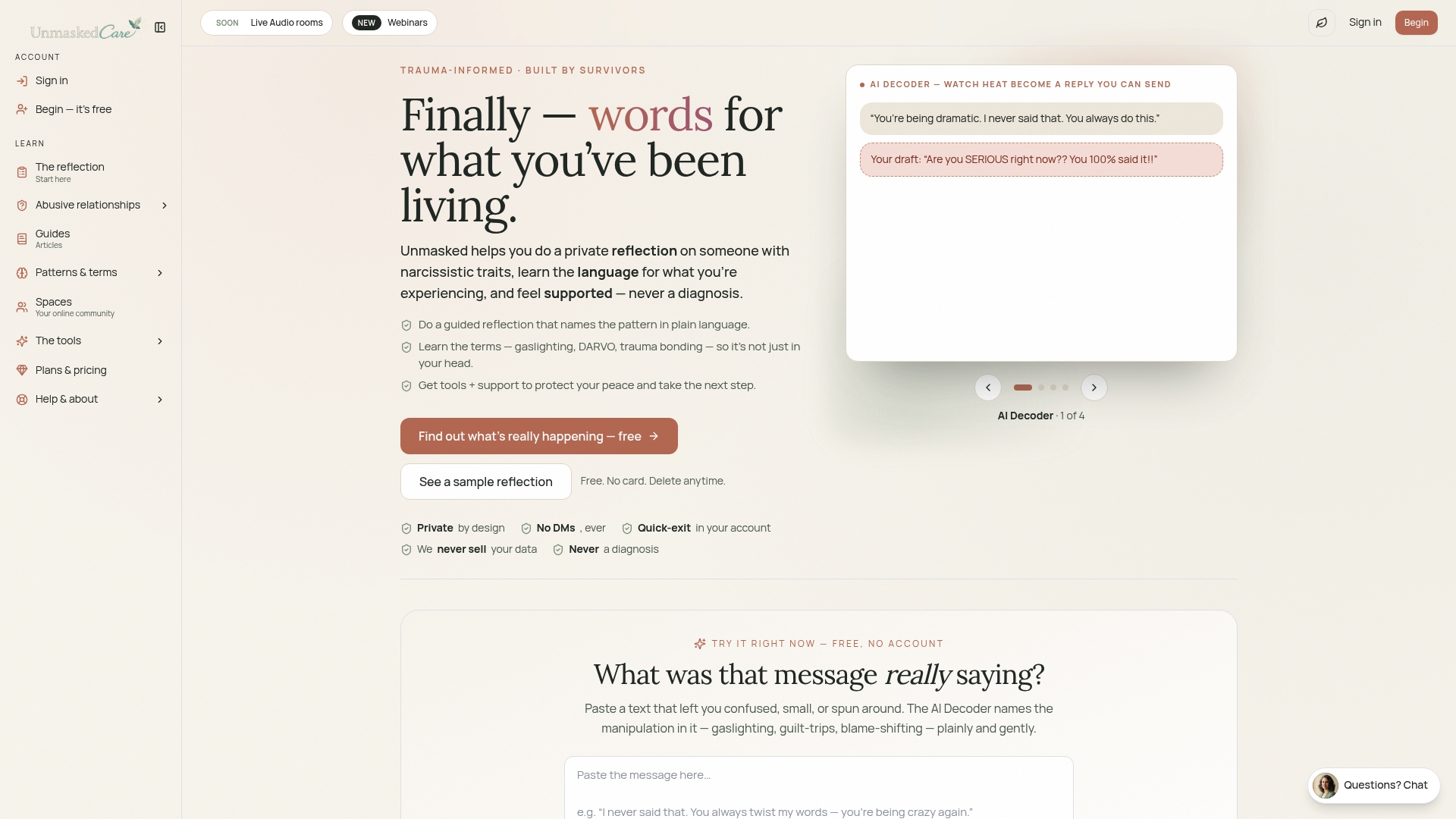
The platform’s evidence file feature is built with privacy in mind, letting you organize sensitive material without scattering it across apps that weren’t designed for this. Before uploading anything sensitive anywhere, including here, take a few minutes to review your privacy settings using the checklist above. Once you’ve locked down your device and app, try the Free AI Decoder to see how a decoded message reads differently once the manipulation tactic is named.
Sources
- Documenting abuse | The Hotline
- Recsty-AB/ownjournal
- How to Keep a Journal Private: The Real Digital-Safety Guide (2026) | CipherWrite
- Documentation tips | Tech Safety
This article is general information, not a substitute for advice from a qualified doctor. Consult a qualified healthcare professional about your own circumstances before acting on anything here.